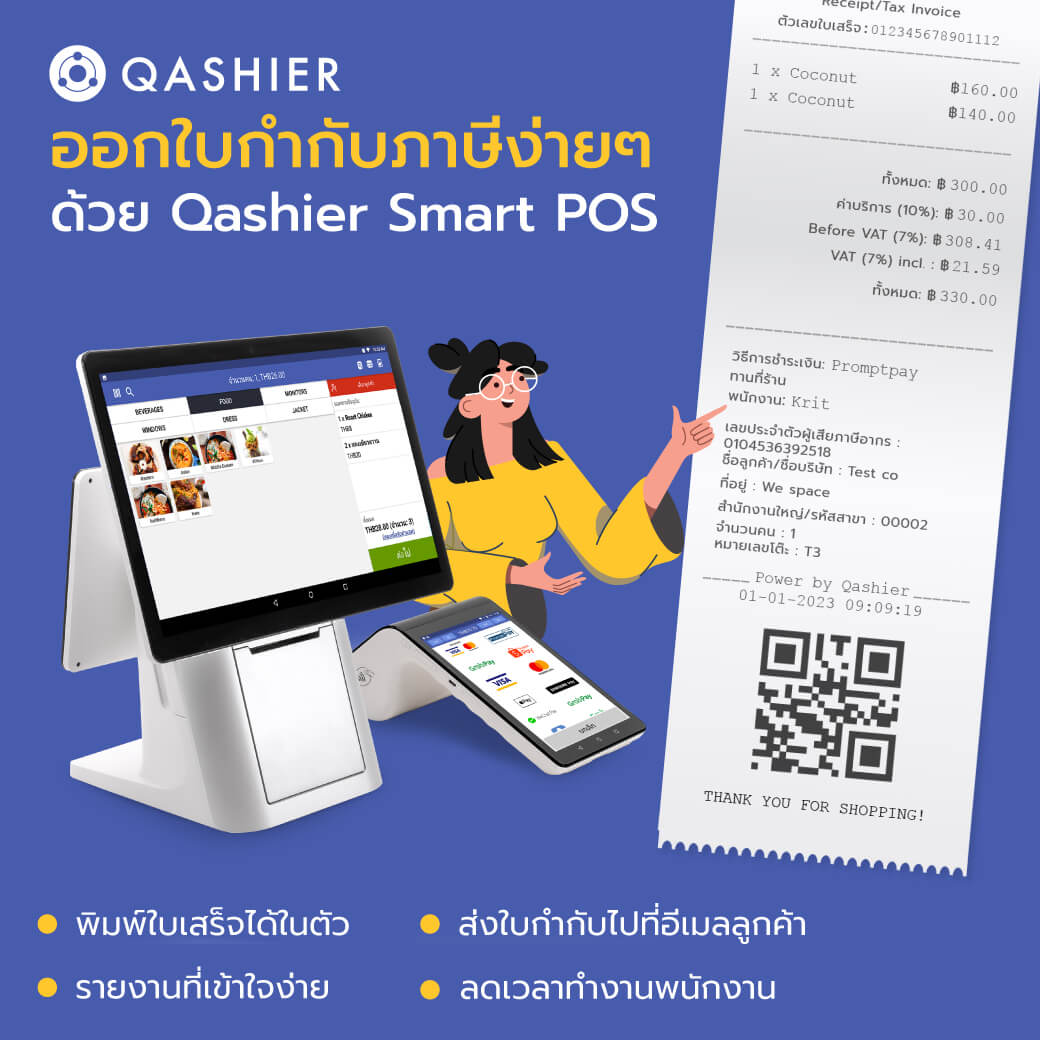
Tax invoices and tax reporting are something every shop owner has to deal with, and for a small business owner they are more than a little fiddly and headache-inducing. Handle it yourself and you worry about getting it wrong; pay someone else to handle it and it costs you. A tool that takes care of this part makes the job far easier — and the tax management built into Qashier POS makes issuing tax invoices and producing tax reports simpler than it has ever been.
What the tax invoice management in Qashier POS can do
- Lets your outlet issue receipts, abbreviated tax invoices and full tax invoices
- Lets your outlet produce abbreviated and full tax reports, as well as output tax reports
- Produces the output tax report automatically, saving you time
If you already use a Qashier POS terminal, just ask customer service to check whether this is switched on for you. Once tax management is enabled, you can start handling tax invoices and tax reports straight away. And beyond being easy to use, running the POS software on a Qashier POS terminal means you can print receipts directly from the device itself.
Qashier POS helps you issue tax invoices and tax reports. Just follow the steps below
How to issue a full tax invoice on the POS
You can issue a full tax invoice from the Qashier POS terminal once the customer has paid.
- Go to the POS home screen

- Select Sales Records
- Select the transaction you want
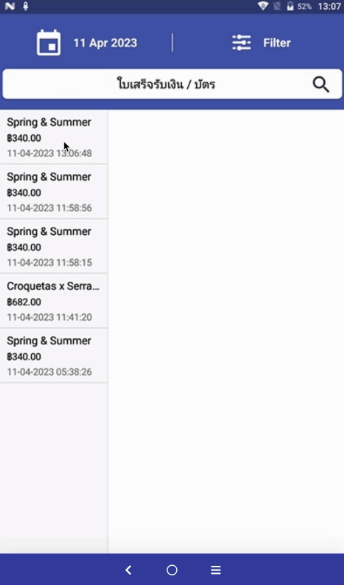
- Select Print
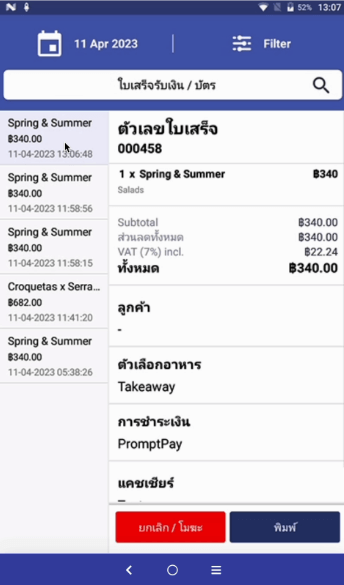
- Select Full Tax Invoice
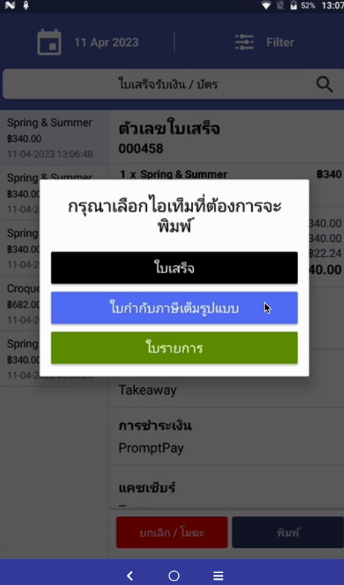
- Fill in the required details on the form
– Taxpayer identification number
– Customer name or company name
– Customer address or company address
– The 5-digit branch code, or the customer's email address (if there is one)
*00000 means head office, while any other 5-digit code means a branch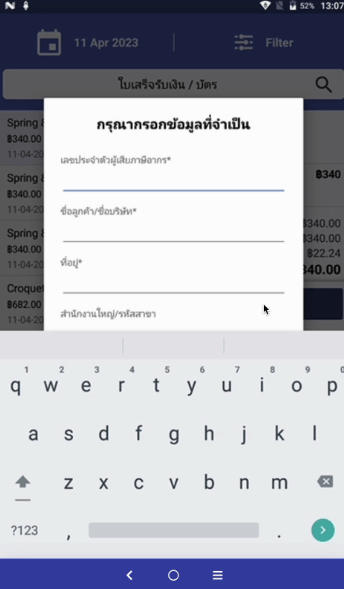
- Tap Confirm
- Tap Yes to print the full tax invoice
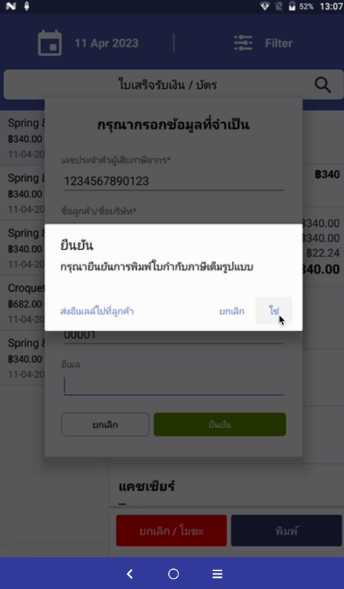
- Tap Email to customer to send the full tax invoice to the customer by email
How to reprint a full tax invoice on the POS
- Go to the POS home screen
- Select Sales Records
- Select the transaction you want
- Select Print
- Select Full Tax Invoice
- Tap Confirm to print
*Reprinting does not allow the details to be edited
How to download the output tax report
- Go to QashierHQ and select Reports
- Select your outlet
- Select the period you want
- Tap Export
- Select “Output Tax Report”
- Select Confirm to download the output tax report as a CSV file
- The file will be named “Output Tax – your outlet name.xlsx”
With all that, tax is no longer a difficult subject for your business.
If you would like Qashier to be the helper your shop needs, do get in touch for more information. We are ready to support shops and restaurants alike with both POS terminals for retail and capable POS software, backed by our team 7 working days a week. To order or ask for more details, contact us on Line Official: @qashier.th or call 02-544-0267